I'd been using GoodSync to synchronize and backup all my important files on windows. I was GoodSync to perform backups both locally and to remote machines. I loved it. It worked perfectly fine when both machines were windows based. Now that I'm at least partially switched to Linux, Goodsync still works, but it's a command line tool that isn't quite as nice as it was before.
First I tried rsync. That required a push and a pull command to get updates propagated both directions. That's fine in one direction but once files get deleted, problems abound since you'd have to know the direction to propagate the deletion to specify the order of the push and pull. I wanted something that could handle things a bit better.
My setup: Linux (Ubuntu) as primary, Windows as remote
First Install ssh on windows. OpenSSH should work fine but for some reason years ago I tried out Bitvise and stuck with it. Either way, should be fine
Now download the binary for windows
http://unison-binaries.inria.fr/
and install unison on Linux
sudo apt-get install unison
make sure you can connect to the windows ssh - port forwarding could be required
ssh username@ipaddress
for those of us without dydns setup
Set up the unison binary:
I used the text version not the gui version.
Extract the zip
copy the executable somewhere (I made a folder C:/Users/UserName/Unison)
Add that folder to the path
System>Advanced Settings>Environmental Variables>Path
(something line ; pathtounisonfolder) (don't forget the semicolon to denote a new entry)
I also renamed the executable to simply "unison.exe" so that I could invoke the keyword "unison" from command prompt. You can check this now.
From Linux make sure unison can be invoked
ssh username@ipaddress unison -version
the result should match
unison -version
if it doesn't see about getting the same version of the software on both local and remote systems.
now setup a synchronization for instance syncing local (linux) dir1 to remote dir4
unison -auto ~/Desktop/dir1 ssh://username@ipaddress/Desktop/dir4
-auto so it doesn't require you to confirm that every single change exists. It will still ask you to confirm before syncing...there's another command to make it just do it.
Lastly, if you need to access other harddrives on the remote machine, it can be done with symbolic links
for instance to make a link to My_Library on D drive ssh into the machine and
mklink /J C:\Users\UserName\Unison\My_Library D:\My_Library
/J for directory link
The first entry is the Location and name of the link and the second is the actual directory
now in unison use
unison -auto ~/media/mountpoint/My_Library ssh://username@ipaddress/Unison/My_Library
ignoring files can be done in the ~/.unison/default.prf file
ignore = Path _gsdata_
ignores my goodsync hidden files from before
that should be it!
https://www.cis.upenn.edu/~bcpierce/unison/download/releases/stable/unison-manual.html#further
Showing posts with label Windows. Show all posts
Showing posts with label Windows. Show all posts
Tuesday, December 29, 2015

Thursday, August 6, 2015
Alternative Approach for Using Gnuplot with Python in Windows
I ran into a problem plotting with python in windows. I don't know how common this problem is, but here were a few articles about it. 2 problems
First: matplotlib would crash (not respond) when trying to update the plot in a loop so that I could visualize data as it's generated.
Second: because windows command prompt doesn't play well with -persist, the well-known Gnuplot.py couldn't open a figure, display the data, then continue the code without closing the figure. The figure has to be manually closed (or closed from command or not using persist) before the code would continue. The other option is to use the png terminal to generate a png image that can be viewed outside either python or gnuplot.
This gave me an idea - but not for python. In windows, windows photo viewer automatically updates if the image it's viewing is updated. So I thought, why not generate a single png file that is viewed in windows photo viewer and let windows photo viewer update the image in real time. This works as long as the png can be written and viewed before the next one is written.
So if I can do this with python, why couldn't I do it in Fortran too?
Here's my idea: Make a module that has two functions. First, one that takes variable arguments with column data and parses it in the correct form for gnuplot csv ( columns next to each other for each variable) and writes the data to a .dat file. The second takes data and a gnuplot script name and calls the first to generate the correct data and then executes the load 'gnuscript.txt' command.
This is a bit redundant in python but I decided to use it as a first step towards something better. Since fortran doesn't visualize data on any operating system (easily at least), this approach would be extensible to other OS.
Attached is a python collection with gnuplot scripts to generate several common figures.
GnuPlotLib.zip
First: matplotlib would crash (not respond) when trying to update the plot in a loop so that I could visualize data as it's generated.
Second: because windows command prompt doesn't play well with -persist, the well-known Gnuplot.py couldn't open a figure, display the data, then continue the code without closing the figure. The figure has to be manually closed (or closed from command or not using persist) before the code would continue. The other option is to use the png terminal to generate a png image that can be viewed outside either python or gnuplot.
This gave me an idea - but not for python. In windows, windows photo viewer automatically updates if the image it's viewing is updated. So I thought, why not generate a single png file that is viewed in windows photo viewer and let windows photo viewer update the image in real time. This works as long as the png can be written and viewed before the next one is written.
So if I can do this with python, why couldn't I do it in Fortran too?
Here's my idea: Make a module that has two functions. First, one that takes variable arguments with column data and parses it in the correct form for gnuplot csv ( columns next to each other for each variable) and writes the data to a .dat file. The second takes data and a gnuplot script name and calls the first to generate the correct data and then executes the load 'gnuscript.txt' command.
This is a bit redundant in python but I decided to use it as a first step towards something better. Since fortran doesn't visualize data on any operating system (easily at least), this approach would be extensible to other OS.
Attached is a python collection with gnuplot scripts to generate several common figures.
GnuPlotLib.zip
Friday, May 15, 2009
Remote Desktop with Mulitple Monitor Support
This post is basically a bookmark for myself so I can quickly find the links I used to figure out how to remote desktop over multiple monitors.
for multiple monitors of the same size and resolution the 'run' command is
mstsc /span
this was found here
for monitors of different resolution
mstsc /W:2860 /H:1050
where 'W' is the total width of both monitors (2860=1680+1280) and 'H' is the height of the smallest monitor.
this was found here
The problem is that the computer i'm trying to log in to has two identical monitors, but the computer i'm logging in from does not. The /span command doesn't seem to work correctly.
for multiple monitors of the same size and resolution the 'run' command is
mstsc /span
this was found here
for monitors of different resolution
mstsc /W:2860 /H:1050
where 'W' is the total width of both monitors (2860=1680+1280) and 'H' is the height of the smallest monitor.
this was found here
The problem is that the computer i'm trying to log in to has two identical monitors, but the computer i'm logging in from does not. The /span command doesn't seem to work correctly.
Sunday, September 21, 2008
Network Mapping with XP and Vista
Getting Vista and XP to play nicely on a network is certainly not always a simple task. My situation was: An XP machine with a shared folder I wanted map to a Vista machine on the same network, but a different subnet. I 'think' the following instructions are just a generally good idea if you are looking to communicate between XP and Vista regardless of the subnet. It's one of the first things I do when I reformat.
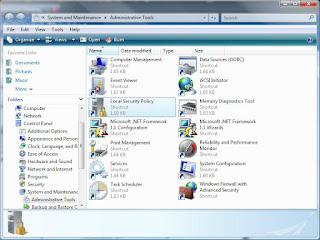
You have to change Vista's security policy to recognize and allow communications with XP's infrastructure. The local security policies can be found in Control Panel>System and Maintenance> Administrative tools.
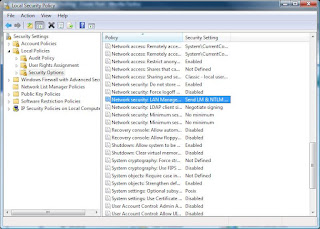
 Open Local Security Policies and expand the Local Policies folder on the left. Then click on Security Options.
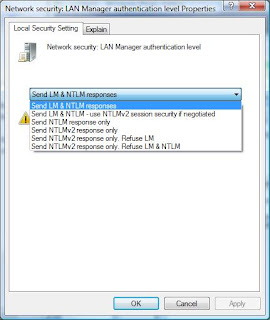
Toward the bottom, double click on Network Security: LAN manager Authentication Level and set it to Send LM & NTLM responses.
 It doesn't tell you to restart, but I always have to before it actually takes the settings.
I think you would probably need to do this on the Vista computer if it were hosting the shared folder. FYI, I spend probably 8 hours trying to figure this out...too much time for a 30 second solution!
Also, if it still isn't working try shutting off Windows firewall and testing it. The firewall seems to get in the way when you're on different subnets - even if it says file sharing is allowed through the firewall. If your network has an external firewall it might be OK to leave it turned off...then again it won't be my problem if something goes wrong because the firewall was shut off!
You have to change Vista's security policy to recognize and allow communications with XP's infrastructure. The local security policies can be found in Control Panel>System and Maintenance> Administrative tools.
 Open Local Security Policies and expand the Local Policies folder on the left. Then click on Security Options.
Toward the bottom, double click on Network Security: LAN manager Authentication Level and set it to Send LM & NTLM responses.
 It doesn't tell you to restart, but I always have to before it actually takes the settings.
I think you would probably need to do this on the Vista computer if it were hosting the shared folder. FYI, I spend probably 8 hours trying to figure this out...too much time for a 30 second solution!
Also, if it still isn't working try shutting off Windows firewall and testing it. The firewall seems to get in the way when you're on different subnets - even if it says file sharing is allowed through the firewall. If your network has an external firewall it might be OK to leave it turned off...then again it won't be my problem if something goes wrong because the firewall was shut off!
Tuesday, September 16, 2008
Removing password request after returning from standby
Here's a link explaining how to remove the password request in Vista when returning from standby or hibernate.
http://www.mydigitallife.info/2008/06/29/disable-windows-xp-and-vista-from-asking-for-password-to-unlock-on-wake-up-resume-from-sleepstandby/
That's the long way around it. I found that you can just open the power settings and there's a link to the right spot. See the picture
 then click on the 'do not require a password' radio button

http://www.mydigitallife.info/2008/06/29/disable-windows-xp-and-vista-from-asking-for-password-to-unlock-on-wake-up-resume-from-sleepstandby/
That's the long way around it. I found that you can just open the power settings and there's a link to the right spot. See the picture
 then click on the 'do not require a password' radio button
Thursday, September 4, 2008
Quick Keys for Making a 'New Folder' in Windows Explorer
To make a 'New Folder' in Windows Explorer the key commands are
alt+F,W,F (capitalization doesn't matter)
That is the quick command for File>New>Folder so it's not really a quick key, but it's faster than right-click..wait..new..wait..Folder.
It doesn't work on the desktop unless Windows Explorer is open to the Desktop. You could bind a special key to make it just one button if you were so inclined.
alt+F,W,F (capitalization doesn't matter)
That is the quick command for File>New>Folder so it's not really a quick key, but it's faster than right-click..wait..new..wait..Folder.
It doesn't work on the desktop unless Windows Explorer is open to the Desktop. You could bind a special key to make it just one button if you were so inclined.
Subscribe to:
Posts (Atom)
